
IT International Academy
🚀 Empowering Future Tech Professionals

Mobile App Development & AI

Building Apps the Smart Way — The Modern Approach

MOBILE APP DEVELOPMENT & AI

MODULE 3

Designing Your App with AI

Great apps are not just built — they are designed. In this module AI becomes your designer, your creative partner, and your guide.
📱 MODULE 3.0

Introduction to Module 3 — Designing Your App with AI

App Design with AI

In Module 1 you built your foundation — understanding what apps are and how AI has changed everything. In Module 2 you set up your complete development environment — every tool in place and ready. Now in Module 3 we begin the creative work. We design your app.

Design is not just about making something look beautiful — although that matters enormously. Design is about making your app work for the people who use it. It is about making sure that when a user picks up their phone and opens your app for the first time, they immediately understand what it does, where to go, what to tap, and how to get what they came for — without confusion, without frustration, and without needing anyone to explain it to them.

In the past, app design was a separate profession. Companies hired dedicated UI designers — User Interface designers — who spent weeks creating detailed mockups and prototypes before a single line of code was written. This process was slow, expensive, and required specialised software and training that most developers did not have.

Today, AI has changed this completely. AI can generate beautiful, professional app designs from a text description in seconds. You describe what your app should look like — the colours, the layout, the feel, the type of users — and AI produces complete screen designs that you can refine, customise and build from. You do not need design training. You do not need expensive software. You need a clear vision and the ability to describe it — and this module teaches you exactly how to do that.

What You Will Learn and Be Able to Do in Module 3

By the end of this module you will be able to:

✅ Understand the core principles of great mobile app design — what makes an app look professional, feel intuitive, and keep users coming back. These principles apply to every app you will ever build — regardless of the tools you use or the platform you target.

✅ Use AI to generate complete app screen designs — from a text description alone, without any design experience or expensive design software. You will use tools like Uizard, Galileo AI and FlutterFlow's AI designer to generate screens that look genuinely professional.

✅ Choose the right colours, fonts and layouts for your app — understanding why certain design choices work for certain types of apps and how to make those choices confidently with AI's guidance.

✅ Create a complete app wireframe — a blueprint of every screen in your app, showing what appears on each screen and how users navigate between them. This wireframe becomes the master plan you follow when building in Modules 4 and 5.

✅ Design for both phone and laptop users — understanding how the same app should adapt its layout for different screen sizes without losing its usability or visual quality.

✅ Use Canva with AI — to create your app icon, splash screen, and promotional graphics — all from your phone or laptop, for free.

3.0.1 — Why Design is Not Optional

Why App Design Matters

Many beginner developers make the same mistake — they focus entirely on making the app work and pay almost no attention to how it looks and feels. They build something functional but ugly, confusing or uninviting — and then wonder why nobody wants to use it.

Here is an uncomfortable truth about the real world of apps — users judge your app in the first three seconds. If it looks unprofessional, cluttered, or confusing in those first three seconds, most users will close it and never open it again — regardless of how well it works underneath. You never get a second chance to make a first impression — and in the world of mobile apps, that first impression is entirely visual.

Consider the apps you use and love every day. WhatsApp is clean and simple — you know exactly what to do the moment you open it. YouTube is visual and inviting — the content draws you in immediately. Your banking app is organised and trustworthy — everything is where you expect it to be. None of these happened by accident. Every element of those apps was deliberately designed to make you feel comfortable, confident and engaged. That deliberate design thinking is what Module 3 builds in you.

The good news is that with AI as your design partner, achieving professional-quality design is no longer reserved for trained designers with expensive tools and years of experience. You describe your vision clearly. AI produces the design. You refine it until it is exactly right. That is the process. And by the end of this module you will know it so well it will feel completely natural.

3.0.2 — What Each Section of Module 3 Covers

Here is a clear overview of every section in Module 3 so you know exactly what is coming and how each section builds on the previous one:

Section 3.1 — Core Principles of Great Mobile App Design. Before you design anything you must understand what makes a design great. This section covers the fundamental principles — simplicity, consistency, visual hierarchy, colour, typography and navigation — that every professional designer uses. These principles apply to every app you will ever build.

Section 3.2 — Using AI to Generate App Screens. This is where you start designing with AI. We use Uizard and Galileo AI to generate complete app screen designs from text descriptions. You will see how fast and how professional AI-generated designs can be — and you will practise generating and refining your own.

Section 3.3 — Choosing Colours, Fonts and Layouts. Design decisions that look simple on the surface — which colour to use, which font to choose, how to arrange elements — are actually very impactful. This section gives you a practical framework for making these decisions quickly and confidently, with AI's help.

Section 3.4 — Creating Your App Wireframe. A wireframe is a simple blueprint of your app — showing every screen, what appears on it, and how users navigate between screens. This is the master plan you follow when you build in Modules 4 and 5. We create yours here, using AI to help structure it.

Section 3.5 — Designing Your App Icon and Splash Screen. Your app icon is the very first thing users see — before they even open your app. Your splash screen is what appears for the first two seconds while your app loads. Both must make a powerful first impression. We design both in this section using Canva and AI — from your phone or laptop, for free.

🎬 Watch — How AI is Changing App Design Forever

📺 Study Note: Watch this video before moving to section 3.1. It will give you a vivid and inspiring picture of how AI is transforming the design process — and it will build your excitement and confidence for the practical work ahead in this module. Inspired students learn faster and build better.

⚠️ Important — Before You Begin Module 3

Before starting section 3.1 make sure you have completed one important task from Module 1 — you should have written down your app idea. The three questions from Module 1 Exercise: What problem does your app solve? Who will use it? What are its three main features?

If you have not done this yet — do it now before continuing. Every design decision in Module 3 will be applied to your specific app idea. Having a clear idea means the work in this module is real and personal — not just an abstract exercise. Your app idea is the canvas. Module 3 teaches you how to paint it.

💡 Mindset for Module 3: As you work through this module do not aim for perfection on the first attempt. Design is an iterative process — you create, you review, you improve, you create again. Every version of your design is better than the previous one — and AI makes the improvement process fast and painless. Give yourself permission to start imperfectly and refine your way to excellence. The best designers in the world do not get it right the first time. They get it right through iteration. And so will you.

📱 SECTION 3.1

Core Principles of Great Mobile App Design

Core Principles of App Design

Before you open any design tool, before you choose a single colour or place a single button on a screen — you must understand the principles that separate a professional app design from an amateur one. These principles are not complicated. They are not reserved for trained designers. They are simply the rules that the best apps in the world follow consistently — and once you know them, you will never look at an app the same way again.

More importantly — once you know these principles, every design decision you make will have a reason behind it. You will not just be guessing at what looks good. You will be making deliberate, informed choices that serve your users and make your app genuinely better. Principles turn guessing into confidence.

3.1.1 — Principle One: Simplicity

Simplicity in App Design

The most important principle in mobile app design is simplicity. A simple app is not a basic app — it is an app where everything that appears on screen has a clear purpose and nothing appears on screen that does not need to be there. Simplicity is the result of removing everything unnecessary until only what is essential remains.

Mobile phone screens are small. Users are often using their phone while doing something else — walking, commuting, eating, talking. They do not have the time or attention to navigate complex, cluttered screens full of information and options. Every extra element you put on a screen competes for the user's attention and makes their experience harder. Every element you remove makes it easier.

How to apply simplicity in your app: Each screen should do one thing and do it well. The home screen of a notice board app should show notices — nothing else. The login screen should allow login — not also show promotions or news. A profile screen should show the user's information — cleanly and clearly without decoration that distracts.

When you are designing a screen and you find yourself adding more and more elements — stop. Ask yourself this question: "If I removed this element, would the user still be able to do what they came to this screen to do?" If the answer is yes — remove it. If the answer is no — keep it. That is the simplicity test and it works every single time.

Real Example — Applying Simplicity:

You are designing a login screen for a school app. Your first version has: a school logo, a welcome banner, a motivational quote, an email input field, a password input field, a login button, a sign up link, a forgot password link, a social media login section, and a news ticker at the bottom.

That is too much. Apply the simplicity test. What does the user need on this screen? They need to log in. So you keep: the school logo, the email field, the password field, the login button, a sign up link and a forgot password link. Everything else goes.

The result is a clean, focused screen that lets the user do exactly one thing — log in — without confusion or distraction. That is simplicity in action.

3.1.2 — Principle Two: Visual Hierarchy

Visual hierarchy is the arrangement of elements on a screen so that the most important things are seen first and the least important things are seen last. Your design should guide the user's eye in a specific order — from the most important element to the least important — without them having to think about where to look.

In everyday life you experience visual hierarchy constantly. A newspaper puts the most important story in the largest headline at the top. A menu puts the most popular or most profitable items in bold or in a highlighted box. A road sign puts the most critical information in the largest text. These are all visual hierarchy in action — and your app screens must do the same thing.

Three tools for creating visual hierarchy in your app:

Size — Larger elements are seen first. The most important text on your screen — the screen title, the main action button — should be the largest. Supporting text should be smaller. Labels and secondary information should be the smallest. Size alone can create a clear and effective hierarchy on any screen.

Colour — Brighter, more saturated colours attract the eye before muted or dark colours. Your primary action button — the thing you most want the user to tap — should be your most vibrant colour. Secondary actions should be less vibrant. Background elements should be the most muted.

Position — Elements at the top and centre of a screen are seen before elements at the bottom and sides. Place your most important information at the top. Place your primary action button prominently — not hidden at the bottom in small text. Position communicates importance even before the user reads a single word.

Practical Exercise — Visual Hierarchy Audit:

Open any app on your phone right now — WhatsApp, a banking app, any app you use regularly. Look at one screen carefully. Identify: What is the largest element? What is the most colourful element? What is positioned at the top? Now ask — is that element the most important thing on that screen? In a well-designed app the answer will almost always be yes.

Write down what you observe. This exercise trains your eye to recognise hierarchy — and a trained eye designs better hierarchy automatically.

3.1.3 — Principle Three: Consistency

Consistency in App Design

Consistency means that the same elements look the same and behave the same throughout your entire app. When a user learns how something works on one screen, they should not have to relearn it on the next screen. Consistency reduces confusion, builds trust, and makes your app feel polished and professional.

Inconsistency is one of the most common mistakes beginner developers make — and it is one of the most damaging to user experience. When buttons look different on different screens, users wonder if they are still in the same app. When the navigation changes between screens, users get lost. When fonts and colours vary randomly, the app looks unfinished and untrustworthy. Inconsistency signals lack of care — and users notice it immediately even if they cannot name it.

Four areas where consistency is critical:

Colour Consistency — Choose a colour palette of two to three colours and use them consistently throughout your entire app. Your primary colour should be the same on every screen. Your button colour should never change without reason. Your background colour should remain consistent.

Font Consistency — Choose one or two fonts and use them consistently. One font for headings. One font for body text. The same font sizes for the same types of text across all screens. Never use more than two fonts in a single app.

Button Consistency — All primary buttons should look the same — same colour, same size, same shape, same position on screen. All secondary buttons should have a consistent alternative style. When users see a button that looks familiar they already know what it does before they read it.

Navigation Consistency — The navigation bar or menu should appear in the same place on every screen. If you put the navigation at the bottom of the screen on the home page, it must be at the bottom on every page. Users build muscle memory for navigation — they automatically reach for the same spot every time. Changing navigation position between screens breaks that muscle memory and creates frustration.

3.1.4 — Principle Four: Colour and Emotion

Colour Psychology in App Design

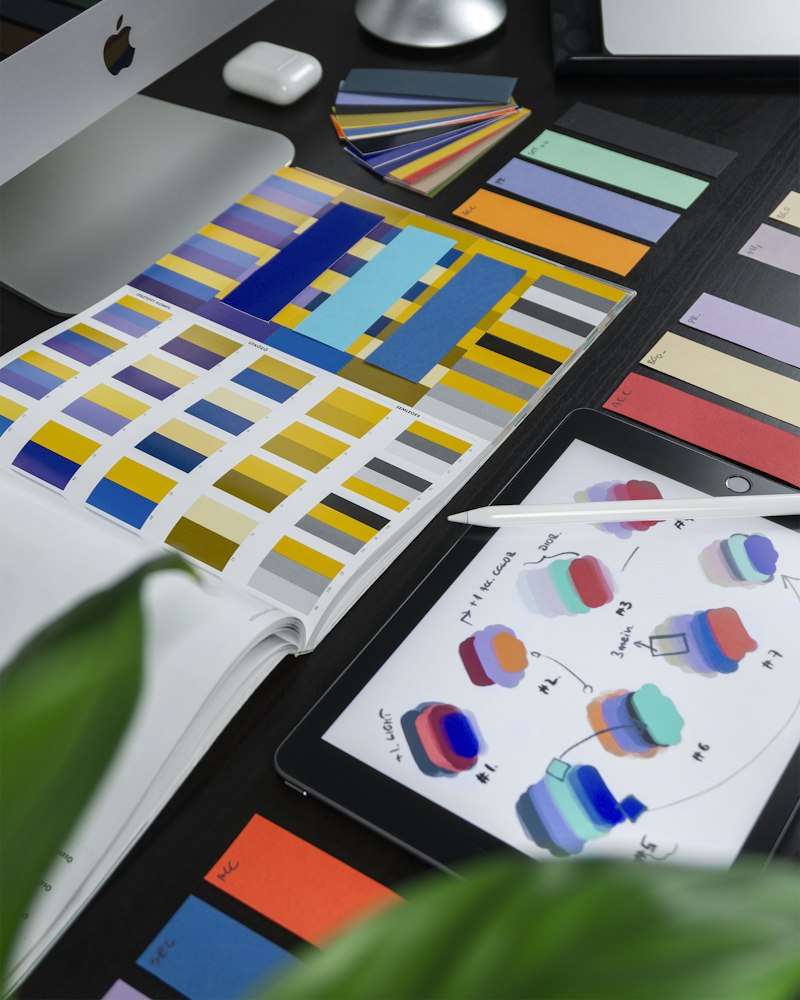
Colour is one of the most powerful tools in a designer's toolkit — not because it makes things look pretty, but because colour communicates emotion and trust before the user reads a single word. Every colour creates a feeling. And that feeling shapes how the user experiences your app from the moment they open it.

This is not abstract theory — it is practical psychology that the world's most successful companies use deliberately and consistently. When you see green you think of money, health or nature. When you see red you think of urgency, danger or energy. When you see blue you think of trust, calm and professionalism. These associations are deeply embedded in how people perceive colour — and your app's colour palette must align with the emotion and trust you want users to feel.

Colour Emotion it Creates Best Used For
Blue Trust, calm, professionalism Finance, health, education apps
Red Energy, urgency, passion Food, entertainment, alerts
Green Growth, health, money, nature Finance, health, environment apps
Orange Enthusiasm, creativity, warmth Creative, social, lifestyle apps
Gold / Yellow Premium, optimism, confidence Premium brands, education, luxury
Purple Wisdom, creativity, royalty Beauty, spirituality, luxury apps
Dark / Black Sophistication, power, elegance Tech, premium, professional apps

How to choose your colour palette: Start with one primary colour that matches the emotion you want your app to create. Then choose one accent colour that complements it — used for buttons and highlights. Then choose a background colour — usually dark or light depending on the mood of your app. That is your complete palette. Three colours. Used consistently. Applied purposefully. Simple palettes always look more professional than complex ones.

3.1.5 — Principle Five: Typography

Typography is the art of choosing and arranging text in a way that is readable, clear and visually appropriate for your app. Bad typography makes even a well-designed app look unprofessional. Good typography makes even a simple app look polished and trustworthy.

On a mobile screen, typography is especially important because the screen is small and users often read in challenging conditions — bright sunlight, moving vehicles, small phone screens held at arm's length. Your text must be easy to read in all of these conditions without the user having to zoom in or squint.

The rules of good mobile typography:

Rule 1 — Use a maximum of two fonts. One font for headings and titles. One font for body text and labels. More than two fonts in one app always looks chaotic and unprofessional. When in doubt use one font throughout — varying the weight (bold, regular, light) instead of the font itself.

Rule 2 — Minimum font size of 14 pixels for body text. Text smaller than 14 pixels is difficult to read on most phone screens. For headings use 20 to 32 pixels. For body text use 14 to 16 pixels. For labels and captions use 12 to 14 pixels — never smaller.

Rule 3 — Sufficient contrast between text and background. White text on a white background is invisible. Light grey text on a white background is nearly invisible and very difficult to read. Always ensure strong contrast between your text colour and the background it sits on. Dark text on light backgrounds. Light text on dark backgrounds. If someone has to strain to read your text — your contrast is insufficient.

Rule 4 — Line spacing and breathing room. Text needs space around it to be readable. Lines of text that are too close together feel cramped and overwhelming. Add padding between text elements. Give your text room to breathe. White space — empty space around elements — is not wasted space. It is a powerful design tool that makes everything around it easier to read and understand.

Best fonts for mobile apps: Google Fonts provides hundreds of free, professional fonts. For most apps these work excellently — Poppins for a modern, clean look. Roboto for a neutral, professional look. Lato for a friendly, approachable look. Montserrat for a bold, impactful look. All of these are available free in FlutterFlow and most other design tools.

3.1.6 — Principle Six: Navigation and User Flow

App Navigation Design

Navigation is how users move through your app — from screen to screen, from feature to feature. Good navigation is invisible — users move through your app effortlessly without ever thinking about how they are getting from one place to another. Bad navigation is painfully visible — users get lost, frustrated and eventually give up.

The golden rule of mobile navigation is this — a user should be able to reach any screen in your app within three taps from the home screen. If it takes more than three taps to reach something important — it is buried too deep. Reorganise your navigation so that your most important features are always one or two taps away.

The most common navigation patterns in mobile apps:

Bottom Navigation Bar — A bar at the bottom of the screen with three to five icons — each representing a main section of the app. This is the most popular navigation pattern in modern mobile apps because the bottom of the screen is where thumbs naturally rest. WhatsApp, YouTube and Instagram all use bottom navigation. If your app has three to five main sections, use bottom navigation.

Hamburger Menu — A three-line icon in the top corner that opens a side menu when tapped. Good for apps with many sections that cannot all fit in a bottom bar. However use this sparingly — it hides navigation behind an extra tap which reduces discoverability of features.

Tab Bar — Tabs at the top of the screen that switch between related views. Good for apps where content is naturally divided into categories — like an app with tabs for "Today", "This Week" and "This Month".

How to design your user flow before building: Take a piece of paper or open a note on your phone. Write the name of your home screen in the centre. Draw lines from it to every screen the user can reach from the home screen. From each of those screens, draw lines to every screen they connect to. This diagram is called a user flow — and it is the navigation blueprint for your app. Build this before you design a single screen. It prevents confusion and missing connections during the build phase.

3.1.7 — Design Principles Quick Reference

Principle What It Means Quick Rule
Simplicity Only show what is necessary One screen, one purpose
Visual Hierarchy Most important things seen first Bigger, brighter, higher = more important
Consistency Same elements look and behave the same Learn once, use everywhere
Colour Colour creates emotion and trust 3 colours maximum, used purposefully
Typography Text must be readable and clear 2 fonts max, 14px minimum body text
Navigation Users move through app effortlessly Any screen within 3 taps

🎬 Watch — Mobile App Design Principles Every Developer Must Know

3.1.8 — Practical Exercise: Design Audit of Your Favourite App

The fastest way to develop design instinct is to study existing great designs with intention. This exercise takes 15 minutes and will sharpen your eye for design permanently.

Exercise Steps — Do These Now:

Step 1 — Open any app on your phone that you use regularly and genuinely enjoy using.

Step 2 — Open a note on your phone and write down the app name. Go through each of the six principles and write one observation:

Simplicity: What does this app leave out?
Visual Hierarchy: What does your eye go to first and why?
Consistency: Name two things the same on every screen.
Colour: What colours and what emotion do they create?
Typography: How many fonts? Is text readable?
Navigation: Where is it? How many taps to main features?


Step 3 — Open Gemini and ask: "Based on these design observations about [app name], what design principles should I apply to my own app which is [describe your app idea]?" Write down the most useful advice.

Step 4 — Save these notes. They will directly inform your design decisions in sections 3.2 through 3.5.

⭐ The IT International Academy Difference

Most app development courses skip design principles entirely — jumping straight into tools and code. At IT International Academy we teach design principles first because we understand that a developer who builds without design knowledge produces apps that work but nobody wants to use.

The six principles you learned in this section are the same principles used by the designers behind the world's most used apps. You now think about design the way professionals do. That is an IT International Academy student.

💡 Pro Tip: Save the Design Principles Quick Reference table from section 3.1.7 as a screenshot on your phone. Every time you design a new screen — open that screenshot and go through each principle one by one. Six questions. Six yeses. One great screen. That is the IT International Academy design standard.

📱 SECTION 3.2

Using AI to Generate App Screen Designs

AI Generated App Screen Designs

In section 3.1 you learned the principles that make a great design. Now we put those principles into action — using AI to generate real, professional app screen designs from nothing but a text description. This is where the transformation happens. This is where your idea starts to look like a real app for the first time.

The tools we use in this section — Uizard, Galileo AI and FlutterFlow's AI designer — are specifically built to turn text descriptions into visual app designs. They understand design principles automatically. They know what a login screen should look like. They know how to arrange a list, where to put a navigation bar, and how to create visual hierarchy without being told. You bring the idea and the context. AI brings the design expertise.

By the end of this section you will have generated at least three screens of your app using AI — a home screen, a detail screen, and a settings or profile screen. These will form the visual foundation of the app you build in Modules 4 and 5. Every design decision made here saves hours of guesswork during the build phase.

3.2.1 — Uizard — AI App Design from Text

Uizard AI Design Tool

Uizard is one of the most powerful AI design tools available today. It allows you to generate complete multi-screen app designs from a simple text description — in seconds. You describe your app, choose a style, and Uizard generates every screen with proper layouts, colours, components and navigation flow already in place. It is like having a professional UI designer available to you instantly, for free, at any time of day or night.

Uizard works in a browser — accessible on your phone or laptop. The free plan gives you enough functionality to design your complete app for this course. Follow every step below to set up Uizard and generate your first AI app design.

Setting Up Uizard — Step by Step:

Step 1 — Open your browser on your phone or laptop and go to: uizard.io Press Go or Enter.

Step 2 — The Uizard homepage loads. Look for the Sign Up Free or Get Started button and tap or click it.

Step 3 — Sign up using your Google account — the same account you have used for all your other tools. This keeps everything organised and avoids managing multiple email accounts.

Step 4 — Once signed in you will see the Uizard dashboard. This is where all your design projects live. It will be empty for now.

Step 5 — Look for a button that says New Project or Create with AI. Tap or click it.

Step 6 — You will be given options for how to start. Look for the option that says Generate with AI or AI Generation — this is the option that takes your text description and generates a complete app design. Select it.

Step 7 — You will see a text input where you can describe your app. This is your design prompt. Type the following — replacing the details with your own app idea:

"A mobile app for a school notice board. Students can view announcements posted by teachers. The app has a Home screen showing a list of announcements with title, date and short preview. Tapping an announcement opens a Detail screen showing the full content. There is a Profile screen where students can see their name and class. Navigation is at the bottom. Use a dark blue and gold colour scheme. Modern, clean and professional design."

Step 8 — Select Mobile App as the device type if asked. Select your preferred style — Modern or Material Design works well for most apps. Then click Generate.

Step 9 — Wait 20 to 40 seconds while Uizard generates your design. Do not close the browser. When it finishes you will see multiple screens of your app — all designed, all connected, all looking professional.

Step 10 — Take a screenshot of each screen that Uizard generates. Save them in a folder on your phone called "My App Design." These screenshots are your visual reference for everything you build in Modules 4 and 5.

3.2.2 — Reviewing and Refining Your AI-Generated Design

When Uizard finishes generating your design do not accept the first result as final. The first generation is a starting point — not a finished product. Your job now is to review every screen using the six design principles from section 3.1 and identify what needs to be improved. Then you refine using Uizard's editing tools or by giving AI more specific instructions.

Go through each generated screen and ask yourself these questions:

Is this screen simple? Does every element on this screen have a clear purpose? If you see something that is decorative but not functional — remove it. If a screen feels crowded — identify the least important elements and remove them.

Is the visual hierarchy clear? When you look at this screen for the first time — what does your eye go to first? Is that the most important element? If your eye goes to a decorative image instead of the main action button — the hierarchy is wrong. Make the most important element larger, more colourful or more prominent.

Is it consistent with the other screens? Does this screen use the same colours, fonts and button styles as the other generated screens? If Uizard has used slightly different shades of blue on different screens — standardise them. Consistency across screens makes the app feel like one cohesive product.

Do the colours feel right? Does the colour scheme match the emotion and purpose of your app? A school app should feel trustworthy and organised. A health app should feel clean and calm. If the colours feel wrong — use Uizard's colour editing tools to change them, or go back to the AI generation with a more specific colour description.

Is the text readable? Can you read every piece of text on every screen clearly? Is there sufficient contrast between text and background? If any text is difficult to read — increase the contrast or the size.

Is the navigation clear and intuitive? Can you immediately see how to move from one screen to another? Is the navigation bar in the right place? Are the icons or labels clear enough that a first-time user would understand them immediately?

After reviewing all screens write down a list of changes you want to make. Then apply them one by one — either directly in Uizard's editor or by prompting AI with more specific refinement instructions. This review and refine process is what separates a thoughtful developer from one who accepts the first result and moves on.

🎬 Watch — Uizard AI Design Tutorial for Beginners

📺 Study Note: Watch this tutorial with Uizard open on your phone or laptop at the same time. Follow along with every step the instructor demonstrates. Pause whenever you need to catch up. Seeing and doing simultaneously is always faster than watching first and trying to remember later.

3.2.3 — FlutterFlow AI Designer — Design That Becomes Your App

FlutterFlow AI Designer

While Uizard is excellent for generating design mockups and prototypes, FlutterFlow's built-in AI designer has one significant advantage — the design it generates is already inside your app builder. You do not need to recreate the design in a separate tool — you design it in FlutterFlow and it immediately becomes the actual app you are building.

FlutterFlow's AI can generate individual screens based on your description. You describe what a screen should contain and how it should look — and FlutterFlow generates it as a real Flutter screen with real widgets that you can immediately edit, connect to data, and add logic to. This makes the design-to-build transition completely seamless. Design and build happen in the same place — saving enormous amounts of time.

Using FlutterFlow AI to Design Screens — Step by Step:

Step 1 — Open FlutterFlow in your browser and open your MyFirstApp project from Module 2.

Step 2 — In the left panel look for an AI button or an option that says Generate with AI or AI Page Generator. Tap or click it.

Step 3 — A text input will appear where you can describe the screen you want AI to generate. Type the following:

"Generate a home screen for a school notice board app. The screen should have a header at the top showing the app name and a search icon. Below the header show a list of announcement cards. Each card shows the announcement title in bold, the teacher's name, the date posted, and a short preview of the content. Use a dark navy blue background with gold accent colours. Cards should have rounded corners and a subtle shadow."

Step 4 — Click Generate and wait for FlutterFlow to create the screen. This takes about 15 to 30 seconds.

Step 5 — When generated, the screen appears in your canvas. Tap on individual widgets in the canvas or widget tree to select them and review their properties in the right panel.

Step 6 — Apply the six design principles review from section 3.2.2 to this screen. Make any adjustments needed using the properties panel on the right — changing colours, sizes, fonts and spacing directly.

Step 7 — Repeat this process to generate your Detail screen — the screen that appears when a user taps on an announcement:

"Generate a detail screen for a school notice board app. This screen shows the full content of one announcement. At the top show a back arrow to return to the home screen. Below that show the announcement title in large bold text. Then the teacher's name and date in smaller text. Then the full announcement content in regular text. Use the same dark navy and gold colour scheme as the home screen."

Step 8 — Take a screenshot of each generated screen and add it to your "My App Design" folder. You now have designs in both Uizard and FlutterFlow — compare them and identify the best elements from each to carry forward into your final design.

3.2.4 — Comparing AI Designs and Choosing the Best Elements

You now have designs from two different AI tools — Uizard and FlutterFlow. They will not be identical. Each tool has its own design style and strengths. Rather than choosing one completely and discarding the other — review both and identify the best elements from each to combine into your final design.

Open your screenshots from both tools side by side. For each screen ask:

Which version has better colour usage? Which has clearer visual hierarchy? Which has more readable text? Which navigation feels more natural? Which card design is more visually appealing? Which overall layout feels more professional?

Write down your answers for each screen. The combination of your best answers becomes your design specification — a clear description of exactly what each screen should look like when you build it in FlutterFlow in Module 4.

Use Gemini to help you decide. Open Gemini and describe both versions of a screen — what each one looks like, what is good about each, and what is weak about each. Ask Gemini: "Based on these two design options for my school notice board app home screen — which elements from each should I combine to create the best possible design? Apply the principles of simplicity, visual hierarchy and consistency in your answer." Gemini will give you a clear, principled recommendation that you can act on immediately. Using AI to make design decisions is not cheating — it is working smart.

3.2.5 — Writing Your Design Specification

A design specification — also called a design spec — is a written document that describes exactly how your app should look. It records every design decision so that when you start building in Module 4, you never have to stop and wonder what colour a button should be or what font size a heading should use. Every decision is already made. You just build.

Your design spec does not need to be long or complex. It simply needs to capture the key decisions clearly. Open a note on your phone and write the following — filling in the details based on your AI-generated designs and your own preferences:

My App Design Specification:

App Name: [Your app name]

Colour Palette:
Primary Colour: [e.g. #060D24 — Dark Navy]
Accent Colour: [e.g. #D4AF37 — Gold]
Action Colour: [e.g. #FF6B6B — Coral]
Text Colour: [e.g. #FFFFFF — White]

Typography:
Heading Font: [e.g. Poppins Bold]
Body Font: [e.g. Poppins Regular]
Heading Size: [e.g. 24px]
Body Size: [e.g. 15px]

Navigation:
Navigation Type: [e.g. Bottom Navigation Bar]
Navigation Items: [e.g. Home, Announcements, Profile]

Button Style:
Primary Button: [e.g. Coral background, white text, rounded corners]
Secondary Button: [e.g. Outlined in gold, gold text, rounded corners]

Card Style:
Background: [e.g. Dark navy #0D1B3E]
Border: [e.g. 1px gold left border]
Corner Radius: [e.g. 16px rounded]
Shadow: [e.g. Subtle dark shadow]

Screens to Build:
1. Home Screen — Announcement list
2. Detail Screen — Full announcement view
3. Profile Screen — Student information
4. Login Screen — Email and password login

Save this specification carefully. This document is your design bible for the rest of the course. Every screen you build in Modules 4 and 5 will follow this specification — ensuring your entire app is consistent, professional and exactly what you designed it to be.

3.2.6 — Practical Exercise: Generate and Review Your App Screens

Exercise Steps — Complete All of These Before Moving to 3.3:

Step 1 — Go to Uizard and generate a complete multi-screen design for your app using your own app idea. Use a detailed prompt describing your app's purpose, users, colour scheme and main screens.

Step 2 — Screenshot every generated screen and save to your "My App Design" folder.

Step 3 — Go to FlutterFlow and use the AI page generator to create at least two screens of your app. Screenshot and save these too.

Step 4 — Review all screenshots using the six design principles checklist. Write down what is strong and what needs improvement in each screen.

Step 5 — Ask Gemini to help you combine the best elements into one final design direction.

Step 6 — Complete your Design Specification document from section 3.2.5. Fill in every field with your final design decisions.

Step 7 — Save everything — screenshots and specification — in your "My App Design" folder. Add the specification to your GitHub repository as a text file called design-spec.txt so it is safely backed up and accessible from any device.

⭐ The IT International Academy Difference

At IT International Academy we teach you to design before you build — because building without a design plan leads to inconsistency, wasted time and apps that need to be completely redesigned after the first version is complete. Professional developers and development teams always design first.

You now have AI-generated designs for your app and a complete design specification that will guide every build decision in the modules ahead. You are not guessing anymore. You are building to a plan. That is professional development.

💡 Pro Tip: When writing design prompts for AI tools — always include these five details for the best results: the type of app, the type of user, the specific screen being designed, the colour scheme, and the overall mood or feeling. The more specific you are about all five — the more accurate and professional the generated design will be. A vague prompt produces a generic design. A specific prompt produces a design that feels made exactly for your app. Specificity is the designer's most powerful tool.

📱 SECTION 3.3

Choosing Colours, Fonts and Layouts for Your App

Colours Fonts and Layouts

In section 3.2 you generated your first AI app designs and created your design specification. You have already made some colour and font choices. In this section we go deeper — understanding why certain choices work, how to make those choices with confidence, and how to use AI to help you decide when you are not sure.

Colour, font and layout are the three visual pillars of your app. Get them right and your app looks professional, trustworthy and intentional. Get them wrong and your app looks like it was put together randomly — even if every feature works perfectly. The visual experience of your app is just as important as its functionality. Both matter equally to users.

3.3.1 — Choosing Your Colour Palette with AI Assistance

Choosing App Colour Palette

Your colour palette is the set of colours you use consistently throughout your entire app. A well-chosen palette makes your app feel cohesive, professional and intentional. A poorly chosen palette makes it feel random and unfinished — even if every individual colour is beautiful on its own, colours that clash or compete destroy the visual harmony of your app.

The rule for beginners is simple and powerful — choose three colours and use only those three throughout your entire app. One primary colour. One accent colour. One background colour. Three colours. That is all you need to create a professional, visually consistent mobile app.

Your Primary Colour — This is the dominant colour of your app. It appears in your header, your navigation bar, and the most prominent UI elements. It sets the overall mood and tone. Choose it based on the emotion you want users to feel — refer to the colour emotion table in section 3.1.4.

Your Accent Colour — This is the colour used for buttons, links, highlights and calls to action — the elements you want users to notice and interact with. It should contrast clearly with your primary colour so it stands out. If your primary colour is dark blue, a gold or coral accent works beautifully. If your primary is white or light grey, a deep blue or green accent creates strong contrast.

Your Background Colour — This is the colour of the main canvas — the space behind all your content. For most modern apps this is either very dark — almost black or deep navy — or very light — white or off-white. Avoid mid-range grey or beige backgrounds — they make content harder to read and give the app a dull, dated appearance.

Using AI to Choose Your Colour Palette — Step by Step:

Step 1 — Open Gemini on your phone or laptop.

Step 2 — Type the following prompt — replacing the details with your own app information:

"I am building a mobile app for [describe your app — e.g. a school notice board for secondary school students]. The app should feel [describe the mood — e.g. professional, trustworthy and modern]. Can you suggest three specific colours for my app palette — a primary colour, an accent colour and a background colour? Give me the exact hex codes for each colour and explain why each one fits my app."

Step 3 — Read Gemini's response carefully. It will give you three specific hex codes with explanations. Consider whether the reasoning matches the feel you want for your app.

Step 4 — If you want to explore alternatives ask: "Can you give me two more alternative palettes for the same app — one darker and moodier, one lighter and more energetic?" Compare all three palettes and choose the one that feels most right for your app and your users.

Step 5 — Update your Design Specification from section 3.2.5 with your final confirmed colour hex codes.

Three proven colour palettes used in professional apps:

Palette Name Primary Accent Background Best For
Dark Professional #060D24 Navy #D4AF37 Gold #0D1B3E Deep Blue Education, Finance, Tech
Clean Light #1976D2 Blue #FF5252 Red #FFFFFF White Health, News, Productivity
Vibrant Modern #6200EA Purple #00E5B4 Mint #121212 Near Black Entertainment, Social, Creative

3.3.2 — Choosing Your Fonts with Confidence

Choosing App Fonts

Font choice is one of the most impactful and most overlooked design decisions a developer makes. The right font makes your app feel modern, readable and professional. The wrong font makes it feel dated, difficult to read or inappropriate for its purpose.

The three font personalities you need to know:

Sans-Serif Fonts — These are fonts without the small decorative strokes at the ends of letters. They are clean, modern and highly readable on small screens. Examples: Poppins, Roboto, Lato, Montserrat, Inter. These are the most popular fonts for mobile apps and are almost always the right choice. When in doubt — use a sans-serif font.

Serif Fonts — These fonts have small decorative strokes at the ends of letters — like the fonts used in printed books and newspapers. They feel traditional, authoritative and trustworthy. Examples: Georgia, Merriweather, Playfair Display. Use these for apps that need to feel established and trusted — like a legal app, a news app, or a religious app. Avoid using them for body text on mobile screens as they are harder to read at small sizes.

Display Fonts — These are decorative fonts with strong personalities. They work well for headlines, logos and splash screens but should never be used for body text. Examples: Raleway, Oswald, Bebas Neue. Use these sparingly and only for large display text where personality matters more than readability.

How to Choose Your Font Using AI — Step by Step:

Step 1 — Open Gemini on your phone.

Step 2 — Type this prompt: "I am building a mobile app for [your app description]. The colour palette is [your primary, accent and background colours]. The mood is [professional / friendly / energetic / calm — choose one]. Can you recommend the best Google Font pairing for this app — one font for headings and one for body text? Explain why each font suits my app."

Step 3 — Read the recommendation and the reasoning. If the reasoning matches the feeling you want — go with it. If not — ask for an alternative.

Step 4 — Go to fonts.google.com on your phone or laptop browser. Search for each recommended font. Click on it to see how it looks at different sizes and weights. Read a paragraph in that font at 15px size — if it is comfortable and clear to read, it is a good choice for body text.

Step 5 — Update your Design Specification with your confirmed font choices. Include the font name, the weight for headings (usually Bold or SemiBold) and the weight for body text (usually Regular or Medium).

Recommended font pairings for common app types:

App Type Heading Font Body Font Why It Works
Education / School Poppins Bold Poppins Regular Friendly, modern and highly readable
Finance / Business Montserrat Bold Roboto Regular Professional, trustworthy and clean
Church / Religious Playfair Display Lato Regular Dignified heading with readable body
Social / Community Nunito Bold Nunito Regular Warm, rounded and approachable
Health / Medical Inter SemiBold Inter Regular Clinical, precise and very readable
Tech / Developer Space Grotesk Bold Roboto Regular Modern, technical and distinctive

3.3.3 — Choosing the Right Layout for Each Screen

App Screen Layouts

A layout is the arrangement of elements on a screen — how they are positioned, how they relate to each other, and how they use the available space. A great layout makes a screen feel natural and effortless. A poor layout makes the same content feel confusing and overwhelming.

Different screens in your app suit different layouts. Understanding which layout to use for which type of screen saves enormous time and prevents the frustration of building a screen only to find that the layout does not work for the content.

The most common mobile app layout patterns:

List Layout — A vertical scrollable list of items where each item is a card or row containing the same type of information. This is the most common layout for home screens, news feeds, announcement lists, product catalogues and message lists. Each card in the list typically shows a title, a preview of content, a date or category, and possibly a thumbnail image. If your screen displays a collection of similar items — use a list layout.

Detail Layout — A single-column layout that shows all the information about one specific item. A back arrow at the top. A large title. Supporting information below it. Then the main content in a readable format. This layout is used for article detail screens, product detail screens, announcement detail screens and profile screens. Keep it clean and give content room to breathe.

Form Layout — A layout designed for data entry — login screens, registration forms, settings screens. Input fields are stacked vertically with clear labels above each field. A primary action button at the bottom. Keep form screens minimal — only ask for information that is absolutely necessary. Every extra field reduces the number of users who complete the form.

Dashboard Layout — A layout that shows a summary of multiple types of information on one screen — like a summary card at the top, a quick stats section below it, and a recent activity list at the bottom. Used for home screens of apps where users need an overview of multiple things at once — like a student dashboard showing upcoming homework, recent announcements and their attendance record.

Grid Layout — Items arranged in a grid of columns — typically two or three across. Good for image-heavy content like a photo gallery, a product catalogue with photos, or a category selection screen. Avoid grid layouts for text-heavy content — it makes reading uncomfortable.

How to Choose Your Layout Using AI — Step by Step:

Step 1 — Open Gemini on your phone.

Step 2 — For each screen in your app type this prompt — adapting it for each specific screen: "I am designing the [screen name] screen for my [app description] mobile app. This screen needs to show [describe the content and purpose of this screen]. The users are [describe your users]. What layout pattern is most appropriate for this screen and why? Describe exactly how the elements should be arranged from top to bottom."

Step 3 — Read Gemini's layout recommendation for each screen. Compare it to the AI designs you generated in section 3.2 — does the generated design use a similar layout? If not — which is better for your users?

Step 4 — Update your Design Specification with the confirmed layout type for each screen. Write it as: "Home Screen — List Layout with card items. Detail Screen — Single column detail layout. Login Screen — Form layout with centred elements."

Step 5 — Open FlutterFlow and apply these layout decisions to the screens you generated in section 3.2. Use the properties panel to adjust spacing, alignment and arrangement to match your confirmed layouts.

🎬 Watch — How to Choose Colours, Fonts and Layouts for Mobile Apps

📺 Study Note: Watch this video with your Design Specification document open. Every time the instructor makes a decision about colour, font or layout — pause and ask yourself: does my current specification reflect this principle? If not — update it. Your design spec should be a living document that improves every time you learn something new.

3.3.4 — Practical Exercise: Finalise Your Colour, Font and Layout Decisions

Exercise Steps — Complete Before Moving to Section 3.4:

Step 1 — Open Gemini and use the colour palette prompt from section 3.3.1 to get a recommended palette for your specific app. Write down the three hex codes.

Step 2 — Use the font recommendation prompt from section 3.3.2 to get a font pairing recommendation for your app. Write down the heading font and body font names.

Step 3 — For each screen in your app use the layout prompt from section 3.3.3 to confirm the right layout pattern. Write down the layout type for each screen.

Step 4 — Open your Design Specification document and update it with all your confirmed colour hex codes, font names and layout types. Every field should now be filled in with specific, confirmed decisions — not placeholders.

Step 5 — Open FlutterFlow and apply your confirmed colours to your app theme. In FlutterFlow go to the Theme settings and update the primary, accent and background colours with your hex codes. Then go to the Typography settings and set your heading and body fonts. These settings will automatically apply to every screen in your project.

Step 6 — Take a screenshot of one of your FlutterFlow screens after applying your confirmed theme. Compare it to your original AI-generated design from section 3.2. Write down: What improved? What still needs work?

Step 7 — Update your GitHub repository with the latest version of your design-spec.txt file. Commit with the message: "Updated design spec with confirmed colours, fonts and layouts"

⭐ The IT International Academy Difference

At IT International Academy we do not leave design decisions to chance or personal taste alone. We teach you to make design decisions based on principles, purpose and user psychology — and to use AI to validate and refine those decisions before a single screen is built.

Your colour palette, your font choices and your layout decisions are now confirmed, documented and applied. Your app has a consistent visual identity. That is the foundation of a professional product. And you built it.

💡 Pro Tip: Once you have confirmed your colour palette — open Gemini and ask: "Are these three colours accessible for users with colour blindness? [paste your hex codes]" Accessibility is an often overlooked but very important aspect of professional app design. An accessible app works for more users — and more users means more value for your app. Designing for everyone is not extra work — it is professional responsibility.

📱 SECTION 3.4

Creating Your App Wireframe

App Wireframing

You have your design principles. You have your AI-generated screen designs. You have your confirmed colour palette, fonts and layouts. Now it is time to bring all of that together into one organised document that maps out your entire app before a single widget is placed — your wireframe.

A wireframe is a simple visual blueprint of every screen in your app. It shows what appears on each screen, where each element is positioned, and how users navigate from one screen to another. Think of it as the architectural plan of a building — before any walls are built, before any paint is applied, the architect draws exactly what the building will contain and how every room connects to every other room. Your wireframe is that plan for your app.

Building without a wireframe is one of the most common and most costly mistakes beginner developers make. They start building the home screen, then add a second screen, then realise the two screens do not connect logically, then have to go back and rebuild. Then they add a third screen and realise a feature they planned does not have a screen to live on. This back-and-forth wastes hours. A wireframe prevents all of this by resolving every structural question before building begins.

3.4.1 — What a Wireframe Contains

A wireframe does not need to be beautiful. It does not need colours or perfect fonts. A wireframe needs to be clear, complete and accurate. It can be drawn on paper, created in a notes app, built in Uizard, or generated with AI assistance. What matters is not how it looks but what information it contains.

Every wireframe should contain the following for each screen:

Screen Name — Every screen has a clear name. Home Screen. Login Screen. Announcement Detail Screen. Profile Screen. The name tells every reader of the wireframe exactly what this screen is.

Screen Purpose — One sentence describing what the user does on this screen. "The user views a list of announcements." "The user logs in with email and password." "The user reads the full content of one announcement." One sentence. One purpose. If you cannot describe a screen in one sentence — it is trying to do too much.

Element List — A list of every element that appears on this screen. Header with app name. Search icon. List of announcement cards. Each card contains title, teacher name, date and preview. Add Announcement button at the bottom. Bottom navigation bar. This list becomes your build checklist — you build each element one by one until the list is complete.

Navigation Connections — For each screen, a list of where the user can go from it. From the Home Screen — tapping a card goes to Announcement Detail. Tapping the Profile icon goes to Profile Screen. Tapping the Add button goes to Add Announcement Screen. These connections form the navigation map of your app.

User Type — If your app has different types of users — for example Admin, Teacher and Student — note which user types can access each screen. "Visible to: All users." Or "Visible to: Teachers and Admins only." This prevents the common mistake of building a screen and later realising certain users should not be able to access it.

3.4.2 — Creating Your Wireframe with AI Assistance

Creating Wireframe with AI

Creating a wireframe used to require specialised software and significant design knowledge. Today AI can generate a complete wireframe structure for your app from a text description — giving you a solid starting point that you then review, refine and confirm. You provide the app idea. AI provides the structure. You make the final decisions.

Creating Your Wireframe with Gemini — Step by Step:

Step 1 — Open Gemini on your phone or laptop.

Step 2 — Type the following prompt — adapting the details to your own app:

"I am building a mobile app for [describe your app fully — purpose, users, main features]. Can you create a complete wireframe structure for this app? For each screen provide: the screen name, the screen purpose in one sentence, a complete list of every element on the screen from top to bottom, which user types can access it, and which screens it connects to through navigation. List every screen the app needs."

Step 3 — Read through the complete wireframe structure Gemini produces. Check every screen it lists:

Is every feature of your app covered by at least one screen?
Is there any screen that is unnecessary or that could be merged with another?
Does the navigation between screens make logical sense?
Are there any screens missing that your users will need?

Step 4 — If Gemini has missed anything or included something you do not want — tell it: "Please add a Notifications screen where users can see all past alerts. And remove the Settings screen — my app does not need one at this stage." Continue refining until the wireframe structure is exactly right.

Step 5 — Copy the final wireframe from Gemini and paste it into a note on your phone called "My App Wireframe." This document is now one of your most important development assets. Save it. Back it up to GitHub.

3.4.3 — Drawing Your Wireframe Visually

Drawing App Wireframe

A written wireframe tells you what is on each screen. A visual wireframe shows you what it looks like. Both are valuable — and together they give you complete clarity before you start building.

You do not need a design tool to draw a visual wireframe. A piece of paper and a pen is enough — and in many cases preferable because it is fast, flexible and requires no technology. Many of the world's most successful apps started as sketches on paper. Do not underestimate the power of a simple hand-drawn wireframe.

How to Draw Your Wireframe — Step by Step:

Step 1 — Get a piece of paper or open a drawing app on your phone. If using paper — a notebook page works perfectly. If using your phone — any drawing app like Google Keep, Samsung Notes or even a whiteboard app works well.

Step 2 — Draw a rectangle that represents a phone screen. This does not need to be perfectly proportioned — just clearly phone-shaped. Tall and narrow. This is your first screen canvas.

Step 3 — Using your written wireframe from section 3.4.2, draw each element on the screen as a simple shape. Use rectangles for cards, buttons and images. Use horizontal lines for text. Use small icons or labels to identify what each shape represents. For example — a tall rectangle at the top represents the header. Stacked smaller rectangles below represent list cards. A rounded rectangle at the bottom represents a button. You are not drawing beautifully — you are mapping space.

Step 4 — Label each element clearly next to it. "App Header." "Announcement Card." "Teacher Name." "Add Button." "Bottom Navigation."

Step 5 — Repeat for every screen in your app. Draw each screen on its own section of the page or on a separate page. Label each screen clearly at the top — "Home Screen," "Login Screen," and so on.

Step 6 — Draw arrows between screens to show navigation connections. An arrow from the Home Screen's announcement card pointing to the Detail Screen. An arrow from the Login Screen pointing to the Home Screen. These arrows are your navigation map.

Step 7 — Take a photo of your hand-drawn wireframe with your phone camera. Save it in your "My App Design" folder. Upload the photo to your GitHub repository. This photo is now a permanent record of your app's blueprint.

3.4.4 — Creating a Digital Wireframe in Uizard

If you want a more polished wireframe that you can share with clients or teammates — Uizard has a dedicated wireframe mode that generates clean, professional wireframe screens. This is optional but highly recommended for students who plan to work with clients professionally.

Creating a Digital Wireframe in Uizard — Step by Step:

Step 1 — Open Uizard in your browser on your phone or laptop.

Step 2 — Create a new project. When asked how to start — look for a Wireframe option or select a wireframe template. If no wireframe option is available select Generate with AI and specify in your prompt: "Generate a low-fidelity wireframe — no colours, black and white only, showing the structure and layout of each screen without visual styling."

Step 3 — Use your written wireframe from section 3.4.2 as the prompt. Describe each screen and its elements clearly. Uizard will generate wireframe screens showing the layout structure without colours or detailed styling.

Step 4 — Review each wireframe screen and compare it to your hand-drawn wireframe. Do they match? If Uizard has missed elements or placed them incorrectly — use the editor to adjust.

Step 5 — Export or screenshot your wireframes and save them in your "My App Design" folder. You now have both a hand-drawn and a digital wireframe — a complete visual blueprint of your app from two different perspectives.

🎬 Watch — How to Wireframe a Mobile App from Scratch

📺 Study Note: Watch this video with your own app idea in mind. Every time the instructor adds a screen or a navigation connection — think about whether your app needs something similar. Pause and add it to your wireframe if it does. A complete wireframe is better than a fast wireframe. Take the time to get it right now and the build phase will be significantly smoother.

3.4.5 — Your Wireframe Completion Checklist

Before moving to section 3.5 confirm that your wireframe is complete by going through every item on this checklist. Do not proceed until you can answer yes to every question.

Wireframe Completion Checklist:

✅ Every feature of my app has at least one screen dedicated to it.

✅ Every screen has a clear name and a one-sentence purpose statement.

✅ Every screen has a complete element list from top to bottom.

✅ Every screen shows which user types can access it.

✅ Every screen shows which screens it connects to through navigation.

✅ The navigation flow makes logical sense — a user can reach every important screen within three taps from the home screen.

✅ There are no screens that do more than one thing — each screen has one clear purpose.

✅ I have drawn a hand-drawn wireframe of at least the three most important screens.

✅ I have taken a photo of my hand-drawn wireframe and saved it.

✅ My written wireframe document is saved in my "My App Design" folder and backed up to GitHub.

If you answered yes to every item — your wireframe is complete and you are ready to move to section 3.5. If any answer is no — go back and complete that item before continuing. The wireframe is the foundation of your entire build. Every gap in the wireframe becomes a problem during the build phase. A complete wireframe now saves hours of confusion later.

⭐ The IT International Academy Difference

At IT International Academy we teach wireframing as a non-negotiable step in the development process — not as an optional extra for advanced students. Every professional development team in the world wireframes before they build. We hold our students to the same professional standard.

You now have a complete written wireframe, a hand-drawn visual wireframe, and optionally a digital wireframe — all backed up and ready to guide your build. You are building like a professional. Because you are one.

💡 Pro Tip: When you present your app to a potential client or employer — show them your wireframe before showing them the built app. A wireframe shows that you think before you build — that you plan, structure and consider the user experience before writing a single line of code. That level of professionalism impresses clients and employers enormously and sets you apart from developers who just start building without a plan. Planning is a skill. Show it proudly.

📱 SECTION 3.5

Designing Your App Icon and Splash Screen

App Icon and Splash Screen Design

Your app icon is the very first thing a user sees before they ever open your app. It appears on the Google Play Store listing, on the user's phone home screen, and in their app drawer. It is a tiny image — usually between 48 and 192 pixels — but it carries enormous weight. A professional, distinctive app icon communicates quality, trust and purpose before a single word is read. A generic or poorly designed icon communicates the opposite — and causes users to scroll past your app without a second thought.

Your splash screen is what appears for the first one to three seconds while your app is loading when a user opens it. It is a full-screen display — usually showing your app logo, app name and possibly a tagline against your primary background colour. While it is on screen for only a few seconds — those seconds are the user's very first experience of your app. Make those seconds count.

In this section we design both your app icon and your splash screen using Canva — a free, powerful design tool that works beautifully on both phone and laptop. With AI assistance and Canva's design tools, you will produce professional, app-store-ready visuals even if you have never designed anything before.

3.5.1 — Setting Up Canva on Your Phone or Laptop

📱 Phone Users — Setting Up Canva:

Step 1 — Open the Google Play Store or App Store on your phone. Search for Canva — look for the purple logo. Install it.

Step 2 — Open Canva. Sign up or log in using your Google account — the same account you have used throughout this course.

Step 3 — You will see the Canva home screen showing templates, recent designs and a search bar at the top. This is your Canva dashboard. Explore it briefly — notice the enormous range of templates available. We will use specific templates for your app icon and splash screen.

Step 4 — Write in your "My Dev Tools" note: Canva — installed and ready for design work.

💻 Laptop Users — Setting Up Canva:

Step 1 — Open your browser and go to: canva.com

Step 2 — Click Sign Up or Log In using your Google account.

Step 3 — Bookmark the page for quick access. You will return to Canva regularly throughout the course for design work.

3.5.2 — What Makes a Great App Icon

Great App Icon Design

Before you design your icon — understand what makes an icon great so your design decisions are deliberate and purposeful rather than random.

Simplicity — The best app icons in the world are strikingly simple. One shape. One symbol. One or two colours. Nothing more. Remember — your icon will be displayed at very small sizes on a phone screen. Anything complex or detailed becomes unrecognisable at small sizes. If your icon needs to be enlarged for someone to understand it — it is too complex.

Recognition — Your icon should communicate the purpose or identity of your app at a glance. A school app icon might use a book, a graduation cap, or a bell. A church app might use a simple cross or a dove. A marketplace app might use a shopping bag or a price tag. The symbol should be immediately recognisable and connected to what your app does.

Colour Consistency — Your icon should use your app's confirmed colour palette. The background of the icon should be your primary colour. The symbol should be in your accent colour or white. This creates visual consistency — when a user sees your icon on their home screen, it immediately reminds them of the colours they see inside the app.

Distinctiveness — Your icon should look different from every other icon on a user's phone. Before finalising your design, look at the apps on your own phone and ask — could my icon be confused with any of these? If yes — change something about it to make it more distinctive.

No text in the icon — Never put your full app name inside the icon. At small sizes text becomes unreadable. The app name appears below the icon automatically — you do not need to put it inside the icon as well. A very short abbreviation — two or three letters — can work if it is large and bold, but full words never work at icon sizes.

3.5.3 — Creating Your App Icon in Canva

Step by Step — Design Your App Icon:

Step 1 — Before opening Canva, open Gemini and ask for icon design ideas: "I am designing an app icon for my [app name] — a [describe your app]. The app colour palette is [your primary and accent colours]. Suggest five simple icon concepts — each using one clear symbol that represents the app's purpose. Describe each concept in one sentence." Read all five ideas and choose the one that feels most right for your app. Write it down.

Step 2 — Open Canva on your phone or laptop. In the search bar at the top type: "App Icon" and press search. You will see many app icon templates. Scroll through them and look for one that is closest to the concept you chose in Step 1. Tap or click it to open it as a starting point.

Step 3 — The template opens in the Canva editor. You will see the icon design on a canvas. First — change the background colour to your primary colour. Tap the background element, then tap the colour tool and enter your primary hex code.

Step 4 — Change or replace the symbol in the template. If the template has a symbol that matches your concept — change its colour to your accent colour or white. If it does not match — delete it and search for a new one. In Canva tap the Elements tab and search for your symbol — for example "school" or "book" or "bell." Find one you like, add it to the canvas and resize it to fill most of the icon space.

Step 5 — If you want to add a very short text label — two or three letters only — use the Text tab in Canva to add it. Use your heading font, white or accent colour, and make it large and bold. Position it clearly visible against the background.

Step 6 — Step back and look at your icon at a small size. On your phone pinch to zoom out until the icon looks the same size as other app icons on your phone. At that size — is the symbol still clear? Is the colour still striking? Is it distinctive? If not — simplify. Remove any element that becomes unclear at small sizes.

Step 7 — When you are happy with the design — tap Download or Share in Canva. Download as PNG format. Save it in your "My App Design" folder as app-icon.png

Step 8 — Upload the icon to your GitHub repository. Commit with the message: "Added app icon design"

🎬 Watch — How to Design a Professional App Icon in Canva

📺 Study Note: Watch this tutorial with Canva open on your phone or laptop. Follow along and create your actual app icon during the video. By the end of the video you will have your real app icon ready to use. This is not a practice exercise — this is the real thing.

3.5.4 — Designing Your Splash Screen

App Splash Screen Design

Your splash screen is the full-screen image that appears for one to three seconds when a user opens your app while it loads. It is brief — but it is powerful. A great splash screen creates an immediate sense of quality and professionalism that sets the tone for the entire app experience that follows.

A professional splash screen contains three elements and nothing more:

Your App Icon — Displayed large and centred in the middle of the screen. The icon you just designed in section 3.5.3 goes here — at a larger size than it appears on the home screen.

Your App Name — The full name of your app displayed below the icon in your heading font. Large, bold and clearly readable. In your accent colour or white against your primary background.

Your Tagline — An optional short phrase — five to eight words — that describes what your app does or communicates its value. Displayed below the app name in a smaller, lighter font. For example: "Stay connected with your school." Or: "Your community, in your pocket."

Step by Step — Design Your Splash Screen in Canva:

Step 1 — Before designing, open Gemini and ask for tagline ideas: "Write five short taglines for a mobile app called [your app name] — a [describe your app]. Each tagline should be five to eight words, memorable and communicate the app's main value to users." Read all five and choose your favourite.

Step 2 — Open Canva. In the search bar type: "Mobile App Splash Screen" or "Phone Screen" and search. Look for a template that is the correct phone screen proportions — tall and narrow. Select a simple, clean template as your starting point.

Step 3 — Change the background colour to your primary colour. Enter your exact hex code.

Step 4 — Add your app icon to the canvas. Tap the Uploads tab in Canva and upload your app-icon.png file from your phone or laptop. Place it centred in the upper-middle area of the canvas. Resize it to approximately one third of the screen height.

Step 5 — Add your app name below the icon. Use the Text tab. Choose your heading font. Set the size to approximately 36 to 48 points. Set the colour to white or your accent colour. Centre align the text.

Step 6 — Add your tagline below the app name. Use a smaller text size — approximately 16 to 20 points. Use a lighter weight — Regular or Light. Set the colour to a slightly transparent white or a muted version of your accent colour. Centre align.

Step 7 — Look at the complete splash screen. Does it feel professional? Does it clearly communicate your app's identity? Is the hierarchy clear — icon first, name second, tagline third? Is there enough empty space around the elements so nothing feels crowded?

Step 8 — Download as PNG. Save as splash-screen.png in your "My App Design" folder. Upload to your GitHub repository with the commit message: "Added splash screen design"

3.5.5 — Adding Your Icon and Splash Screen to FlutterFlow

Now that you have your app icon and splash screen designed and saved — let us add them to your FlutterFlow project so they are part of your actual app from this point forward. Every time you preview or test your app, your real icon and splash screen will appear.

Adding Icon and Splash Screen to FlutterFlow — Step by Step:

Step 1 — Open FlutterFlow in your browser and open your project.

Step 2 — Look for the Settings option in the left panel or top menu. Inside Settings look for App Details or App Assets.

Step 3 — Find the App Icon section. Tap or click Upload and select your app-icon.png file from your device. FlutterFlow will automatically resize and format it for all required icon sizes across Android and iOS. You do not need to create different sizes manually — FlutterFlow handles this for you.

Step 4 — Find the Splash Screen section. Some versions of FlutterFlow allow you to upload a splash screen image. If this option is available — upload your splash-screen.png. If it is not available in your version — you can create the splash screen directly inside FlutterFlow as a page with a dark background, your icon centred, and your app name below it. This page is set as the first page that appears when the app opens, with an automatic navigation after two seconds to the Login or Home Screen.

Step 5 — Save your FlutterFlow project. Click the Preview button to run your app and confirm your icon and splash screen appear correctly.

Step 6 — Take a screenshot of the preview showing your splash screen. Add it to your portfolio folder. This screenshot shows a real app with a real identity — icon, name, colours and splash screen — all designed by you, for your specific app. That is your app. It has an identity. It looks professional. And you built it.

🎉 Module 3 Complete!

You have completed the full design phase of your app development journey. You now have:

✅ A deep understanding of the six core design principles
✅ AI-generated screen designs from Uizard and FlutterFlow
✅ A confirmed colour palette, font pairing and layout decisions
✅ A complete written and visual wireframe of your app
✅ A professional app icon
✅ A professional splash screen
✅ Everything backed up to GitHub

Next — Module 4: Prompting and Building Your App with AI.
The design is done. Now we build. Let us go.

⭐ The IT International Academy Difference

At IT International Academy we believe that every student — regardless of their background, their device, or their prior experience — deserves to produce work that looks and feels genuinely professional. Module 3 proves that this is possible.

You have just completed a full professional design phase — the same phase that real development teams at real companies go through before building any app. You did it using free tools, AI assistance, and the device you already have.

That is not beginner work. That is IT International Academy standard. And you have met it.

💡 Final Tip for Module 3: Save a copy of your complete design folder — icon, splash screen, wireframe, screenshots and design specification — in at least two places. Your phone storage and your GitHub repository. Design assets take time to create and are easy to lose. Two copies means you never lose them. As you continue through the course and your app evolves — update these assets to reflect the improvements. Your design folder is a living record of your app's growth from idea to finished product. Document everything. Lose nothing. Build with pride.